
Local Capture
Local Capture is brilliant. It lets your iPhone or iPad make a clean, high-quality recording of calls and interviews directly on the device - even from apps like FaceTime, Zoom, Teams and WhatsApp. Instead of relying on flaky internet audio, it saves a broadcast-quality local recording you can share afterwards. It’s perfect for two people to carry out an interview - even if they’re thousands of miles apart - and stitch both sides of it together. The recording will be immeasurably better than if you were to simply record a Zoom call. It’s aimed at content creators, podcasters, and radio/TV interviewers. And, rather than it being a standalone app you download from the App Store, it’s already integrated into the operating system. You just need to enable it to use it.
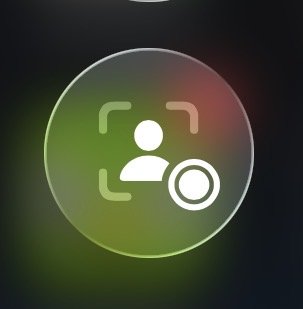
Local Capture’s icon in Control Center
Why It Matters (The "Double-Ender" Problem).
When recording a remote podcast or interview over apps like FaceTime, Zoom, or web platforms, the audio and video are usually compressed over the internet, leading to glitchy or low-quality results. There are a number of solutions to this - but most of them cost money. Riverside.fm, Streamyard and Zencastr are some of the best known apps which use what’s known as a double-ender, where each participant records their own mic and camera locally at full quality, and the files are stitched together later in post-production. When iOS 26 was launched, however, Apple built Local Capture into the operating system.
And the best bit about it? It’s completely free.
Key Features
Lossless Audio & High-Res Video: By default, it captures your side of the conversation into a single MP4 file containing high-efficiency video and lossless FLAC audio.
Zero Audio Bleed: It isolates only your input (your voice and camera). It completely excludes the audio or video of the other participants on the call, giving editors a clean track to work with.
Audio-Only Mode: If you are recording a traditional audio podcast, you can long-press the control to toggle off the camera and save space.
Hardware Compatibility: It automatically detects and records from the iPad/iPhone built-in hardware, AirPods, or external USB microphones/audio interfaces.
Direct Files Integration: Recordings bypass the Photos app and are saved directly into a dedicated folder within the Files app (customizable via Settings > General > Local Capture), making them instantly ready to drop into editing suites like Logic Pro, GarageBand, or Final Cut Pro.
How to Use It
Add Local Capture to Control Center
One-time setup
Swipe down from the top right of your screen to open Control Center. Long-press on any empty space to enter edit mode, tap Add a Control, search for Local Capture, and add it. It’s always in Control Center just waiting to be activated.
2. Start Your Call
Launch your video conferencing or phone app (FaceTime, Zoom, Phone app, etc.) and connect with your guest or co-host.
3. Trigger the Capture
During the call swipe open the Control Center (top right of the screen) and tap the Local Capture button. After a brief countdown, a recording indicator will appear (or flash in your Dynamic Island) showing that your local feed is recording.
4. Stop and Edit
Post-production
When your conversation is over, tap the recording indicator or return to Control Center to stop. Tap Show Files to jump straight to your high-quality track in the Files app.